Set up imap mail box in Outlook
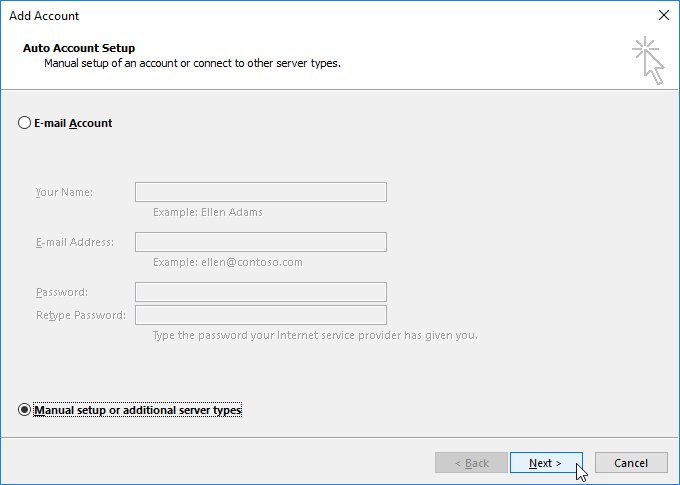
Open Outlook. If you already have configured account, go to File --> Add Account. Choose "Manual setup"
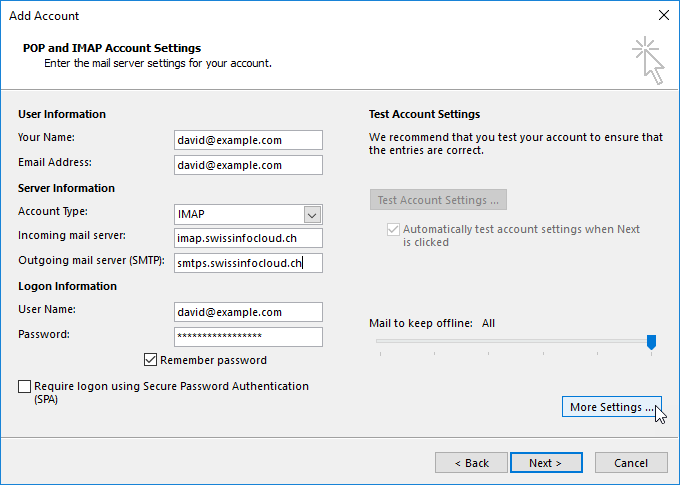
Choose "POP or IMAP"
Fill the required information, your name, email, password and server settings as follow:
Account Type: IMAP
Incoming mail server: imap.swissinfocloud.ch
Outgoing mail server: smtps.swissinfocloud.ch
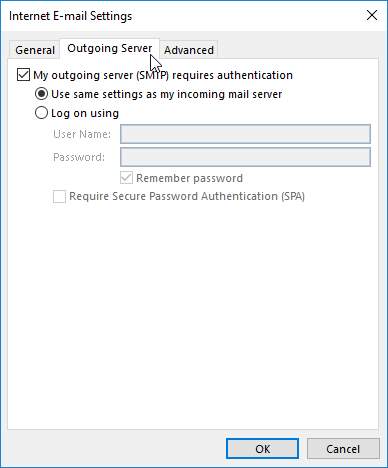
Go to "More Settings" --> "Outgoing Server" tab
Check "My outgoing server (SMTP) requires authentication" option
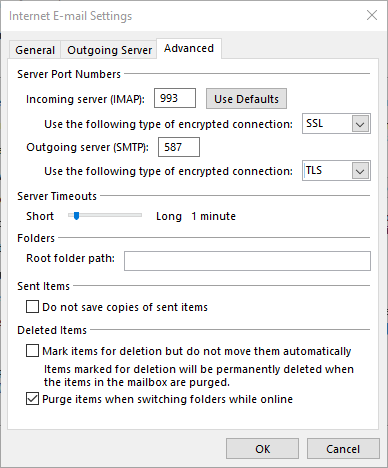
Go to "Advancved" tab
Incoming mail can be configured using SSL or TLS:
- To configure by TLS:
- Incoming server (IMAP): 143
- Encrypted connection: TLS
- To configure by SSL:
- Incoming server (IMAP): 993
- Encrypted connection: SSL
Outgoing mail:
- Outgoing server (IMAP): 587
- Encrypted connection: TLS
Click "OK"
After a few seconds you will see Account Settings Test
Make sure that the status of all the tasks is "Complete"
Click "close" and "Finish" on main window