Installation of FortiToken Mobile

1. Go to Store
2. In the search box, type "fortitoken mobile" and choose the app FortiToken Mobile.

3. Tap Install.


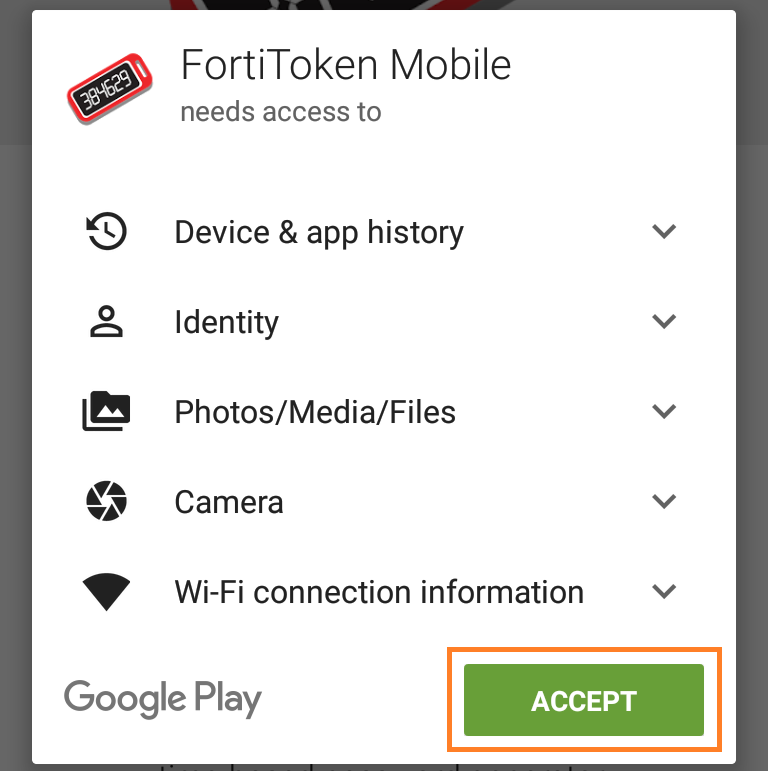
4. Tap Accept to kick off the installation.


Token activation
5.
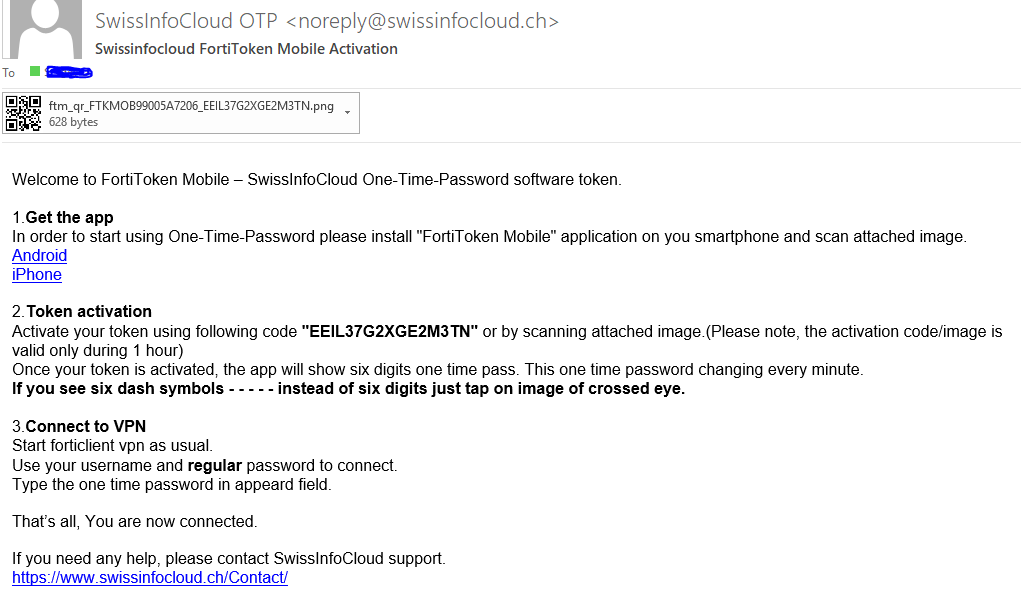
Open the activation email received from SwissInfoCloud OTP noreply@swissinfocloud.ch  and open the attached graphical file.


6. Tap Scan Barcode to scan the QR code displayed in the activation email by using the token barcode scanner, or enter code manually.


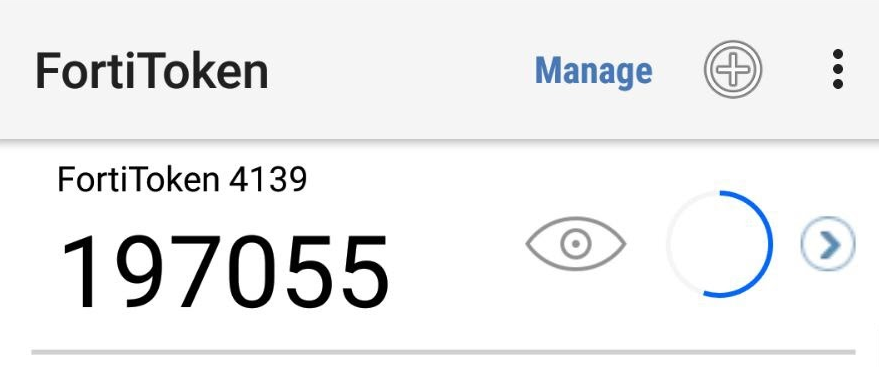
7. Once the token is activated, a token will be displayed on the 2FA Mobile App (FortiToken) and it is ready for use.


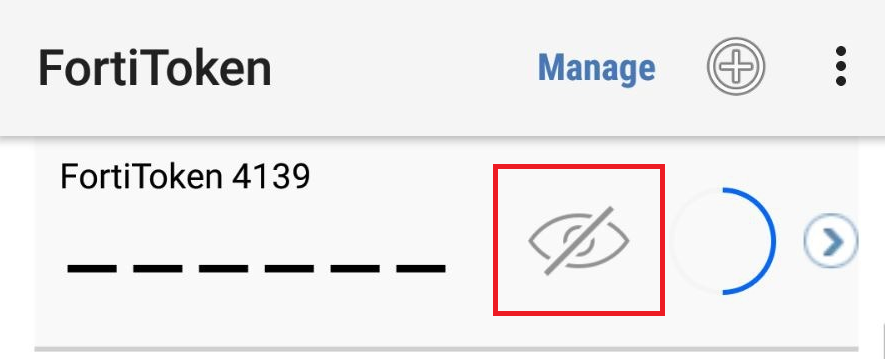
8. If you find the token code is not displayed, please tap the icon highlighted below.


Ця відповідь Вам допомогла?

 Роздрукувати цю статтю

Також прочитайте

SafeOffice advantages vs Local Computer

SafeOffice secutity level is very high  Multilevel network protection system High Availability...

Swissinfocloud Support with Teamviewer

In order to get remote support please download our support application and provide your id and...

How to Print locally from a Remote Desktop Connection

For printing on local printer douments opened on remote desktop  you have to Enable Printer as a...

Does "Swift chat" save conversation history?

The server site of "Swift chat" doesn't save your conversations.However,it can be saved lacally...

How to change password

In order to change the password of your account, please visit The change password page...